Stop Wasting Hours Formatting Images: The 1-Click Fix for Creators
The “Just One Image” Trap
You just spent four hours writing the perfect blog post or setting up a new product page for your e-commerce store. Everything is ready to go live. All you need now is to upload the cover image.
You download a stunning, high-resolution photo from Unsplash. It’s 4MB.
If you upload it directly, your website speed will tank, your Largest Contentful Paint (LCP) score will turn red on Google PageSpeed Insights, and your mobile visitors will bounce before the page even loads. You know you have to optimize it. And this is exactly where the nightmare begins.
Why Your Current Workflow is Completely Broken
To properly prepare an image for the web today, you need to do three things: resize the dimensions, convert it to a next-gen format like WebP, and compress the file size.
Look at the traditional workflow most of us are forced to use:
- The Software Hassle: You open Photoshop. It takes 30 seconds just to load. You manually resize the canvas, export it, and tweak the quality slider hoping the file size is small enough.
- The “Free Tool” Nightmare: You search for a free online compressor. You upload your image to one site to crop it. Then you download it and upload it to a second site to convert it to WebP. Then a third site to compress it. All while dodging sketchy pop-up ads and worrying about where your data is actually being stored.
What should have been a 5-second task just broke your creative flow and stole 10 minutes of your life. Multiply that by 20 product images or a month’s worth of social media posts, and you are losing hours of peak productivity to repetitive, mindless clicking.
The Solution: How to Optimize Images in 1 Click (Without Losing Quality)
I got so frustrated with this broken, multi-tab workflow that I decided to build a unified solution. The goal was simple: zero ads, zero complex settings, and a complete pipeline that does everything instantly.
Here is the step-by-step guide to bypassing the hassle using the built-in Image Studio at CyberCraft Studio.
Step 1: Drop Your Massive File
Just log in. Simply drag and drop your heavy, high-resolution JPEG or PNG directly into the CyberCraft Studio interface. (Yes, even those massive 10MB+ files).
Step 2: Hit “Quick Optimize”
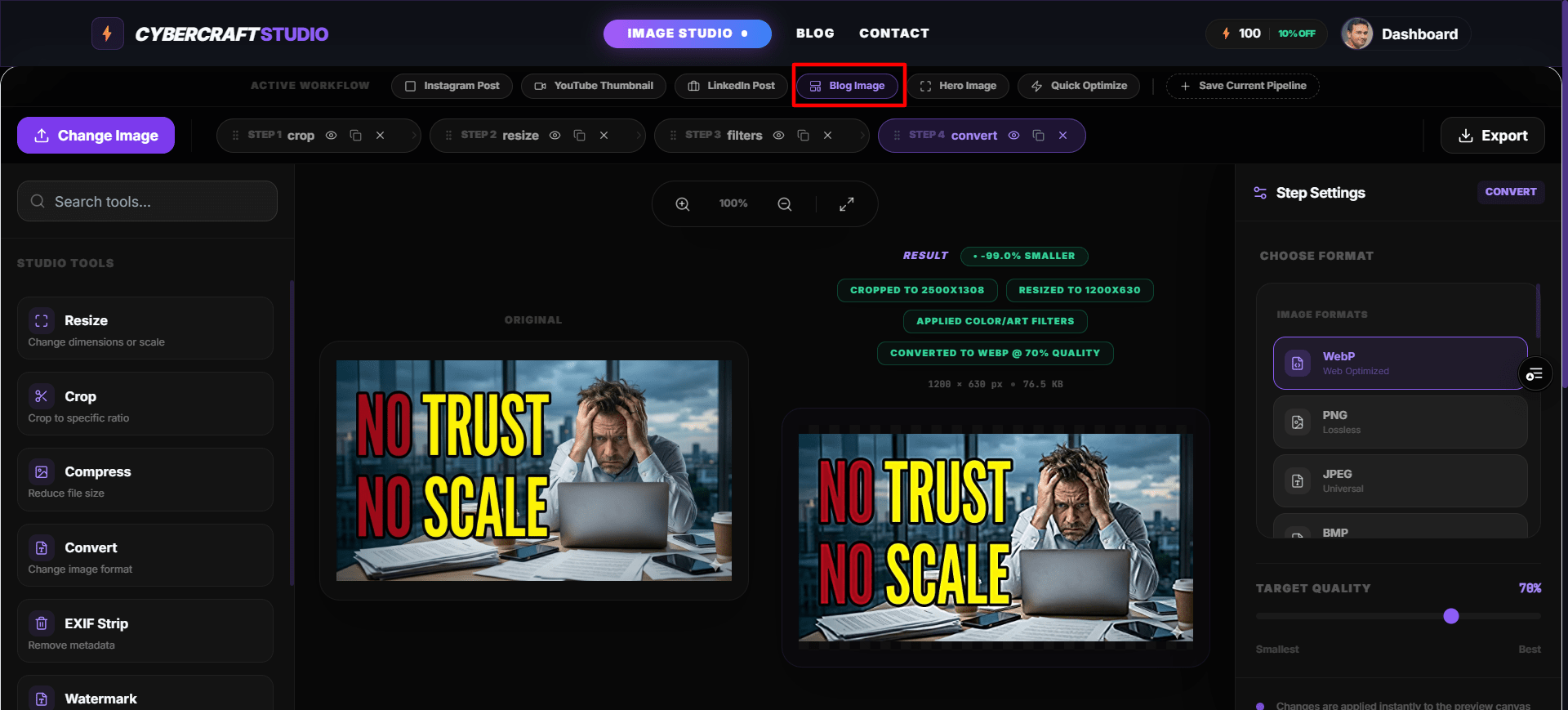
Instead of guessing which compression percentage looks best or manually changing formats, just click the Blog Image button at the top of the dashboard.
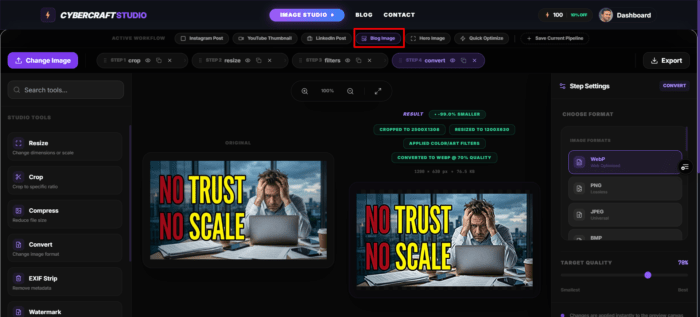
In a split second, the engine automatically:
- Crops the image smartly to web-friendly dimensions.
- Resizes the image
- Applies the filter.
- Converts the heavy format into ultra-light WebP.

You can find all the processing actions here. And the good thing is, you can remove any action if you want any of them to be applied. e.g: If you don’t want applying filters, you can remove it just clicking on the “x” sign in the action.
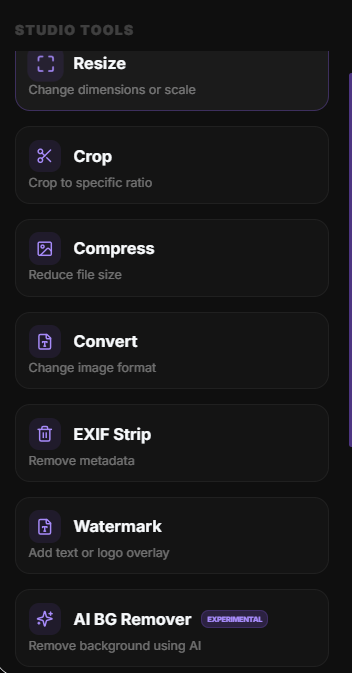
Also, you can add processing action from left side tool bar.
Step 3: Export Your Web-Ready Image
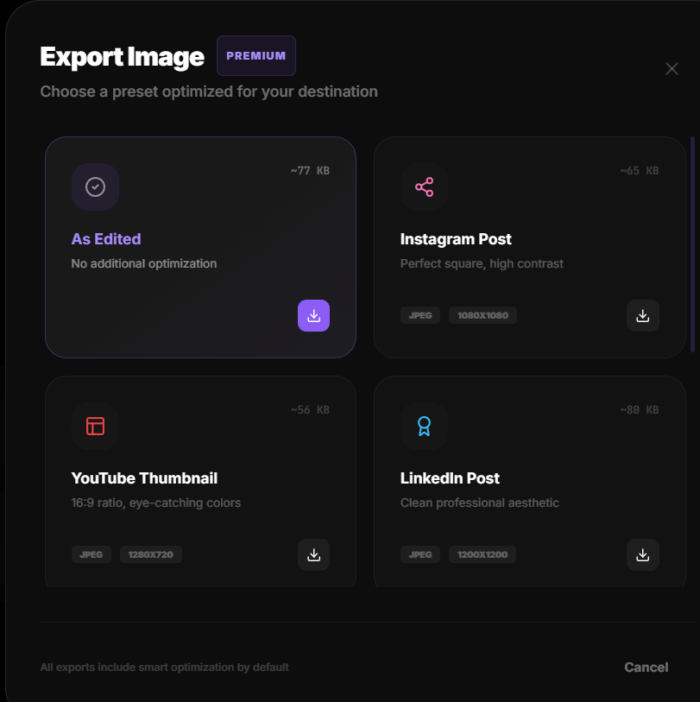
You’ll see a real-time, side-by-side comparison proving that the visual quality hasn’t dropped. Click Export, you will find a popup asking you in which preset you want the image to download. Choose “As Edited”, and your blazing-fast, SEO-friendly image is ready to upload.
No Photoshop. No jumping between shady websites. Just one click.